Showing posts with label on. Show all posts

Friday, October 10, 2014

Odin How to Flash Install I9100XILA2 Android 2 3 6 Stock ROM on Samsung Galaxy S II 2

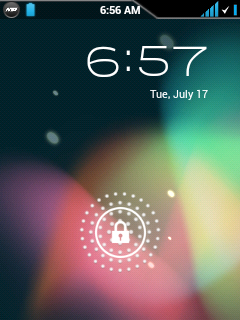
The firmware update build I9100XILA2 is an upgrade to Android 2.3.6 Gingerbread on Samsung Galaxy S II. This is the newest official firmware update by Samsung releases this year with a build or modified date of  January 13, 2012 . This firmware was officially rolled out in Italy. One thing new on this firmware is that it features a new lockscreen that looks like an Android Ice Cream Sandwich with touchwiz. There is an improvement in battery life usage, battery drains too slow which is a bit impressive. Some several features were added, more faster and much better than previous build I9100XXKL1.

Sneak peek of the new lockscreen.


Firmware details:
PDA: I9100XILA2
CSC: I9100XWKI1
PHONE: I9100OXIK1
Kernel: 2.6.35.7-191000XILA@-CL889496
             root@DELLBUILDER01 #2
Version: Android 2.3.6 Gingerbread
Build: January 13, 2012

credits to turborider for the screenshots

Some few other details of changes.
- Various bugs were fixed from previous version
- Android 4.0 styled Lockscreen Android 4.0 styled lockscreen lockscreen  with similarity from Galaxy Note
- Wi-Fi chip bug has been fixed

Flashing the Stock ROM I9100XILA2 with Odin Downloader tool. 
This method if you are having issues updating with KIES or if you wanted to install it if you came from other region outside Italy.

This guide uses the original stock I9100XILA2 with Italy default CSC file ITV.
Grab the stock ROM via Sammobile:
GT-I9100_I9100XILA2_I9100OXIKK1_ITV
Extract it after download, the password is: samfirmware.com

If you want to upgrade but came from other region , you can use the Frankenstein version which is by flashing desired CSC file that is built for your country. You can grab it here at Intratechs Frankenstein Firmware file. 

Before proceeding, do things as follows to avoid any future problem issues.
- Make a back-up copy of all important data stored from the device.
- Make sure that the battery is at-least 80%  charge.
- Use a good condition USB cable wire a PC with a working USB serial ports.


Disclaimer: Use this guide at your own risk. We shall not held any responsibility for any damage might cause to your smartphone.
1. Run Odin v1.85
2. Load the extracted file on the PDA field.
Click on the PDA button then select the I9100XILA2_I9100XWKI1_I9100OXIKK1_HOME.tar.md5
DO NOT check the RE-PARTITION" checkbox.
3. Then set the phone in Download Mode: Press and hold Volume Down, Home and Power button.
4. Once in Download mode, connect to PC,.
5. When Odin recognize it and the phone is properly connected,  hit the "START" button.
how to flash stock rom I9100XILA2 with Odin - start

6. Wait until the flashing completely finish.
how to flash stock rom I9100XILA2 with Odin - finish
Thats it! if you experience bootloops after flashing. Do full factory reset or wipe data cache.
If you want to get root, look for chainfires CF-ROOT kernel released at XDA.
Read more »

Tuesday, October 7, 2014

How to Watch 2012 Hot Christmas Movies on Android Tablets

Christmas movie on Android tablet
Christmas draws near and near, and tablets have become the best Christmas gift for families. With the best performance and low price, Android tablets are no doubt the great choice, such as, Amazon Kindle Fire HD. And if you or will own a Android tablet, and you like movies, then the most enjoyable thing for this Christmas is watch the hottest Christmas movies of 2012 on the Android tablet with your family or friends. There are so many wonderful Christmas movies prepared for you, and let’s just take some time to get the methods of watching the Christmas Movie on Android Tablets.

Method 1.Download Hot Christmas Movies from Some Website

You can download free hot Christmas movies for Android Tablet from the following websites imp4hubor or itabmovies. Both of the two websites offers the free download movies in MP4 formats. And you can also subscribe the website and requires the movie you want. The flaw is that some good holiday movies are offered and the numbers of movies is not in large number.

And there are also other reliable websites Netflix, Clicker, ZumoCast, YouTube, HuluPlus,ABC and CBS network websites offering free online movies, you can also download the movies but you should pay for it. One thing you should take care is ensure the website is safe and you also need to connect the Internet.

Tip:The majority of people choose this method to watch the Christmas movies with family, however, there is a problem for this one. The movie formats. You know, there are no tablets which can support all the formats, when you cannot play the movies you download on your Android tablet, you are probably need an Android tablet converter to help you.

Method 2: Install Movie Apps to Stream the Movie

If you just don’t like to browse the websites then you can install some movie apps to watch the movie on your Android tablet. You can choose Netfix, IMDb Movies & TV, VLC Direct Pro and other choices.

Tip:In this way, you can enjoy the Christmas movies better, but you need to connect to the web unless you have downloaded the movies.

So, it is you turn to choose your favorite Christmas Movie for your Android tablet.


2012 hot Christmas Movie suggestion: Life of Pi,Whatever Happened to Baby Jane? Home Alone,The Holiday,Jingle All the Way,How the Grinch Stole Christmas,Miracle on 34th Street,The Polar Express,The Simpsons Christmas,White Christmas 


Related article:
  • How to Watch MKV Videos on Kindle Fire HD  
  • How to watch videos on Google nexus 7 or other Jelly Bean devices?
Read more »

Sunday, September 21, 2014

AOC Releases Two Smart Monitor Based on Android


Smart devices have become products that can not get out of the lifestyle. Following the trend of Android, AOC launched several products All-in-One PC-based mobile platform that Google made​​. Both All-in One is the Android-based Smart Smart AIO AIO 58P and 72P. Line of All-in-one from the AOC can be a great photo frames, IP-based TV and a set top box for the device, and connect to the PC via HDMI / VGA monitor should ordinary.

According to the AOC, they are targeting Smart AIO for consumer and business segments. For consumers aimed at the family, especially with a large screen will maximize the pleasure and comfort of the child. While in the business segment, AOC reveals that Smart AIO can be used for the purposes of exploring the internet is more compact and modern.

Smart AIO 58P features a 21.5-inch screen Full HD (1920x1080p), Android 4.0 Ice Cream Sandwich, with a WiFi USB Dongle, integrated SDHC Card Reader, integrated speakers, USB and LAN connectivity, while Smart AIO 72P already using Android Jelly Bean, integrated WiFi and an integrated HD webcam. Both price and availability have not been revealed by the AOC.
Read more »

Thursday, September 11, 2014

Install JellyBean On HTC Explorer A310E Pico JellySlash CM10

How To Install JellyBean CM10 On HTC Explorer A310E Pico [JellySlash]


HTC Explorer is a great entry level budget android phone with loads of stuff. Thanks to the mighty HTC hardware this little device can power even the jellybean with a 600MHz CPU.

Before Starting: You Can Also Check-

1. Root HTC Explorer A310E
2. Install CWM Recovery on HTC Explorer
3. Install ICS On HTC Explorer using CyanogenMod9

HTC Explorer can really handle the ROM without much lags or any sort of disturbances.

Warning:

Instructions: Must Read 


Before Installing The ROM You have To Install CWM Recovery. It can be done only after rooting your phone. Backup all your Data since installing new rom will erase phone data.
We arent responsible for any damage happened to your phone. Rooting can Void Warranty. Dont try this guide if you have no idea about rooting or any of the mentioned procedures.


Before Starting:

1. Root Your Phone + Unlock bootloader. Click here for procedure. 
2. You have to install A CWM recovery.- Click here
3. Make sure you have atleast 65% of battery charge to spare.
4. Download The .zip ROM from source-Download
5. You wont get Google Apps in this Rom, so you have to get the zip for Gapps installation. Download them for CM10.

Lets Start:


1. Download .zip ROM file and kernel file from the link.

2. Connect your phone to PC using USB cable- dont forget to enable USB debugging 

3. Copy both files to the external memory. Don’t extract them. ( Its better to place files on SD). If you want you can place the GApps in phone, copy the files also.

4. Disconnect mobile from PC and Turn it off by long pressing power button.
5. Enter into the bootloader mode. To enter into bootloader mode, Hold Volume Down + Power Button simultaneously until bootloader mode appears.
6. In bootloader menu navigate using volume keys and highlight recovery and enter into recovery mode by pressing Power button. You will now reach Custom recovery.
7. Now wipe "data/factory reset" and then " wipe cache partition " to wipe all the data and caches respectively on the phone.
8. Now lets Flash the ROM. Select install zip from sdcard and then choose zip from sdcard. Then select the CyanogenMod 10 file and install.
9. The installation takes some time to finish. 
Note: If you want to install GAPPS then repeat the step of install zip from sdcard and chose zip from sdcard. But this time chose Gapps package.


10. After successful flashing of both the files, select  +++++Go back+++++  and then reboot system now. Normally the first boot takes quite a lot of time. Please be patient. 


You have successfully Installed Jellybean On HTC Explorer Pico using CM10.


Read more »

Wednesday, July 30, 2014

Kindle Fire 2 and Glowing Kindle Touch Released on September 6

Amazon is expected to announce the second version of its Kindle Fire tablet at a press conference in Santa Monica, California, on 6 September. The Fire may come in both 7in and — less likely — 10in versions, along with an improved Kindle Touch. One tablet will be supported by advertising to reduce the cost, according to an unconfirmed report in the Wall Street Journal.

While predictions are always risky, Amazon sent us the biggest possible hint yesterday (Thursday), with the announcement that the original Kindle Fire had sold out forever. Visit the Amazon.com page for the $199 Kindle Fire, for example, and there are no new ones for sale, only second-hand products. The $99 Kindle Touch is listed as "Currently unavailable".

There is no prospect of Amazon discontinuing these products, so there must be new versions ready to launch.

A few details of the Kindle Fire 2 (or Kindle Blaze, or whatever) have already appeared. The most significant is an increase in screen resolution from 1024 x 600 pixels to 1280 x 800. The larger format is already used by other tablets, including Googles similarly-priced Nexus 7.

Last month, DisplayMate president Raymond Soneira told the AllThingsD website that this represented "a 67 percent increase in total pixels, and it is visually significant. It gives the display a PPI (pixels per inch) of 216." This should improve the readability of text, and will also enable the Kindle Fire 2 to show HD (720p) videos.

For comparison, Apples iPad had a lower resolution of 1024 x 768 pixels, which was doubled to 2048 x 1536 in the iPad 3. Apple also had to thicken the iPad 3 slightly to provide extra battery power to support the extra pixels, though the Kindle Fire 2 is unlikely to need this.
Amazon Kindle Fire

The Kindle Fire 2 is expected to be thinner and use more metal in its construction. It may also include a camera to support Skype, and a GPS chip to support location. According to a Reuters story published yesterday: "Amazon.com Incs new Kindle Fire will have mapping services via a tie-up with Nokia Oyj … filling a gap in the tablets capabilities while snubbing Google Incs popular service."
The new Kindle Touch is expected to have an illuminated display. This looks like a natural response to Barnes & Nobles launch of the Nook Simple Touch with GlowLight.

The difficult question is whether a 10.1in tablet will appear at the same time. Taiwan-based Digitimes and the BGR website wrote about 10in tablets long before the original launch. Last June, BGR got quite specific about the two models, codenamed Coyote and Hollywood, but Hollywood has still not appeared. 

It also remains to be seen whether Amazon will reduce the Fires $199 price to compete with the Google Nexus 7 and the entry-level model of whatever 7in iPad Apple might launch. The $199 tag was considered aggressive at the time, and it is thought that both the original Fire and Googles Nexus 7 sell at close to break-even prices. After all, Apple charges $199 for its cheapest iPod Touch.
Both Google and Amazon are prepared to forego hardware profits to increase adoption, and take profits later from the sales of ebooks, movies, music, apps and, in Googles case, advertising.

When announcing that the Fire had sold out, Amazon boss Jeff Bezos trumpeted the success of "the best content ecosystem". The press release said:

Kindle Fire offers customers a vast selection of digital content — over 22 million movies, TV shows, apps, games, books, magazines and more — in one seamless, end-to-end experience, making it easy for customers to browse, discover and purchase. Since Kindle Fire launched last September, all of the top 10 products on Amazon — across all products — are digital products
.
Whether this impressive ecosystem generates more cash per device than Googles hugely-profitable advertising is another matter.

In the end, I suspect the most likely result is that Amazon will launch two 7in Kindles, with the Kindle Fire 2 at $199 and an ad-supported Kindle at a lower price, possibly a penny less than $175.

from zdnet

Read more »

Tuesday, June 17, 2014

How to Install rooted 2 3 3 Gingerbread update on HTC EVO 4G

Will updating my HTC EVO 4G with the OTA while Rooted ruin my phone? Will I be able to keep my root status?
If you really want to update to Gingerbread 2.3.3 Gingerbread update but confused and do not want to lose the rooted status of your device, this simple procedure will help you out those confusion. Xhausts from XDA had already cooked the OTA Android 2.3.3 update and its already rooted.
These ROMS are based from original stock ROM update and has been modified and called ROOTED Odexed & De-Odexed ROMS.

install rooted 2.3.3 Gingerbread update on HTC EVO 4G
All you need to do is grab a copy of below ROMS and flash it through Recovery.
Stock Update
Stock ROM with SU Fix - No Wipe Needed If Coming From A Stock Sense ROM:

4.22.651.2 Rooted & Odexed - updated 06/05/11
4.22.651.2 Rooted & De-Odexed - updated 06/05/11

Firmware:
Must be flashed through hBoot/Fastboot! Not Recovery.
PC36IMG - Radio, WiMAX and PRI Updates (MD5: 2E5C63EA59891A69F6D55C257CF165D5)

View and read the original thread for further instruction.
Read more »

Wednesday, June 4, 2014

Nokia Accuses Google’s Nexus 7 s Infringement on its patents


Google’s Nexus 7

Google and its partners are knee deep in patent disputes. And this time, instead of a certain Cupertino company, it’s Nokia on the offensive. Less than a week after Google unveiled its new Nexus 7 tablet, Nokia has made claims that the Nexus 7 infringes on some of its patents.

The news came only days after Apple won not one, but two injunctions against Samsung Android devices. Both the Galaxy 10.1 tablet and the Galaxy Nexus, Google’s flagship smartphone, may face U.S. sales bans.

The Nexus 7, however, won’t necessarily face injunction. Nokia has yet to file any suits against Google or Asus, the OEM responsible for manufacturing the Nexus 7. Nokia is much more likely to request that Google and Asus pay the appropriate licensing fees than bring either one to court.

“Nokia has more than 40 licensees, mainly for its standards essential patent portfolio, including most of the mobile device manufacturers,” a Nokia spokesperson told Wired in an e-mail. “Neither Google nor Asus is licensed under our patent portfolio. Companies who are not yet licensed under our standard essential patents should simply approach us and sign up for a license.”

Its unclear, however, which of Nokia’s patents the Nexus 7 infringes. The Inquirer reports that it could have to do with patents regarding IEEE 802.11 Wi-Fi standard. The Nexus 7 comes in a Wi-Fi only model, without cellular data options.

Google and Asus did not respond with comment by the time of publication.

Considering the financial hurdles Nokia currently faces, it makes sense for the company to leverage its 30,000-strong patent portfolio. This could be the beginning of Nokia’s patent mining efforts, as it waits for Windows Phone to pay off.

from wired
Read more »

Wednesday, May 28, 2014

Install Android 4 1 Jelly Bean Apps on Android Devices with Custom Recovery

Although some Android devices at present have received the upgrade of Android 4.1 Jelly Bean, there are still many Android phones or tablets running Android 4.0 ICS waiting for the official or custom Jelly Bean releases. Is it possible to install Android 4.1 on any Android devices? Seems the answer is no, but the good news is that we can install the Jelly Bean apps using the custom recovery to experience Jelly Bean applications even without upgrading the device.
Enjoy Android 4.1 Jelly Bean apps on ICS
You may know, Android 4.1 Jelly Bean has brought us some new and great applications like Google Ears(also known as Google Sound Search), improved Face Unlock, Google Books, etc. Following is the guide to download and install from recovery a package and through this you can enjoy the Android 4.1 Jelly Bean applications on ICS devices.

The package contains Google Books, Google Calendar, Google Currents, Google Ears, Google Earth, Google Magazines, Google Maps, Google Music, Google News, Google Play, Google+, Google Wallet, Email Client, Face Unlock, Gallery, Gmail, Noise Field, Phase Beam, Street View, Talk Back, Video Editor, Videos.

Warning
  • This guide aims to the Android device running Android 4.0 Ice Cream Sandwich.
  • No guarantee that these instructions will work under your specific and unique circumstances.
  • Use the instructions is at your risk. Read and understand the whole guide first to take actions.
  • Root is required.
Preparations
  • You need an Android 4.0 Ice Cream Sandwich device with custom recovery such as ClockworkMod Recovery and TWRP Touch Recovery .
  • You need to back up all personal data on your device to make sure you have a copy of your personal data (contacts, SMS, MMS, Internet settings, Wi-Fi passwords, and the like).This steps you can read the articles how to sync your data to the cloud and how to create local backups of your mobile data.
  • Download the Jelly Bean Applications package to your computer (JB Apps.zip, 49.85 MB)
Guide
  • Copy and paste the Jelly Bean Applications package to your device’s SD card.
  • Turn off the device and reboot to ClockworkMod Recovery or TWRP Recovery.
  • Select Install ZIP from SD Card> Choose ZIP from SD Card. Select the JB Apps.zip file, select it, and confirm the action. Then the installation will start. When the installation is done, reboot your system.

Now, you can enjoy the Android 4.1 apps on your Android 4.0 ICS device.


Related article:
Three Methods to Manually Update Nexus 4, Nexus 7 and Nexus 10 to Android 4.2.2
Read more »

Tuesday, May 13, 2014

Install JellyBean On Samsung Galaxy Y GT S5360 JellyBlast

How To Install JellyBean On Samasung Galaxy Y GT-S5360


Samsung Galaxy Y is a cute little budget android phone which has caught the hearts of young people in India and over the world. The device comes with android 2.3 Gingerbread, which is far outdated in present scenario, with Jellybean overtaking GB earlier this year in terms of users. Those who have used Y for a long time must have been bored by the old GB interface. So we can show you how to install JellyBean ROM in your favorite Galaxy Y. 

Before starting Check: How To Root And Install CWM Recvovery :Galaxy Y

[Edited] For those who experienced IMEI loss, bricking etc, here is the method to revert back to stock Rom- How To UnBrick , Unroot Galaxy Y

Warning:

  • Create back-up of all your data
  • Phone should possess atleast 65% battery life left
  • We arent responsible for any problems with your device, Do this at your own risk.
  • Rooting Voids Warranty
Instructions: Must Read

[Edited] Important: Backup your IMEI number ;many have faced network loss due to loss of IMEI number.


Install Jellybean:

  • Before Starting Root Your device and Install CWM Recovery- Click here

  • Download the JellyBlast Rom from 4share by searching " JellyBlastGenEDSigned.zip" ( about 122 MB)

  • Using USB connect your phone to Pc and copy the downloaded Rom file to your SD card.

  • Disconnect device from PC.


  • Boot into Recovery Mode-( Press Home+Volume Up+Power buttons)

  • Now you can use home button to select and Volume buttons to navigate.

  • Next you have to wipe all of the given stuffs:  [ wipe format, wipe system, wipe data, wipe boot, wipe dalvick, wipe cache ]

  • Next select "install zip from SD card" and in the coming page select "choose zip from SD card".

  • Now select the downloaded "JellyBlast.zip" rom file from your SD card and confirm it.

  • Now you have to wait till the process is finished. It will take some time.

  • When Jellybean is successfully installed, you will get a confirmation. Next go to main menu and select" Reboot System Now", and wait for it to restart.

  • Please note that the first boot takes quite some time, be patient.

Note: If your device hangs on boot screen/welcome screen, no need to worry. Just do all these steps again after removing the battery and reloading it.


There you go! Your Galaxy Y is now flashed with JellyBean Rom.
Read more »

Monday, May 12, 2014

Guide on How to Install a leaked Honeycomb on HTC flyer

From a news month ago that HTC spokesperson has confirmed the Honeycomb upgrade for HTC flyer will be made available as soon as possible after it releases. Its been little while ago since that report claimed. But now, you might probably already know, The Beta version of the Honeycomb for HTC Flyer has leaked a few days ago. Advance users already tested the said ROM even its been somewhat very complicated to install. The process reportedly tested and works on a Euro WWE 32 GB 3G Flyer and may also work with other variants but unconfirmly works well so far.

Heres a few screenshoots just for a brief details of what have we got to the the HTC Flyer Honeycomb update.

HTC Flyer Honeycomb Firmware SS2


Important Things Needs to Consider Before Following this Guide:
* This process is recommended for experts only!
* This guide is only tested on a Euro WWE 32GB 3G Flyer - it may work on other configurations, but this is untested (id advise reading the topic to see if anyone has experimented with your configuration!)
* Anything you do from this point forward is at your own risk - my Flyer works and ive resurrected a couple of others, but I take no responsibility if it all goes horribly wrong. You COULD brick your tablet
* Do NOT under any circumstances run the RUU in its entirety nor fastboot flash rom.zip - this will make irreversible changes that you dont want!
* Be careful if you flash any RUUs or do anything that could revert you to S-ON on a broken system - this could leave you stuck
The installing process needs to ensure that you have an RUU that matches the ROM version of your HTC Flyer just a back up if anything went wrong and can roll back the process. You can follow the complete step by step installation guides from Paul of Android Modaco here on this thread.
Read more »

Sunday, May 11, 2014

notiShare Have All Your Social Networking On One Window

Ultimate Single Social Network App- Have Them All In One Window


Tired of having to access each of your social networks separately to share what youre doing or thinking?

The solution is here!- notiShare

NotiShare is straightforward in concept and design, and cuts down the tedious process of the novelty of impulsively expressing your thoughts. With support for Android versions 1.6 and newer and available for free on the Play store.

Henceforth you could share, in just one click, in all major social networks and just as intuitive as possible.
The application is not designed for sharing on multiple social networks simultaneously, but to share on each social singly, in a quick and intuitive way, with your favorite client!

notiShare allows you to configure and create a notification that will give you direct access to share on your preferred social:
  • Google+ 
  • Twitter
  • Facebook
  • Odnoklassniki
  • VKontakte

And for users who do not have the official social network app installed, fear not, as notiShare gives users the flexibility to select third party alternatives. And more, if your phone supports expandable notifications (Android versions 4.1 +) you can interact with many more Social!

 
Read more »

Download Android Apps free on Blackmart Alpha 0 49 93 Android APK


Blackmart is one of the best stores to download Android apps and games for free. Here you have the latest version 0.49.93 + APK!

Blackmart Alpha allows you to download for free any paid application available on their servers. The application has an excellent user interface that lets you search and find apps and games easily. Although the downloads are not the fastest, they are usually very stables.
Blackmart also has filters that allows you to sort applications by name, size, price, date and value and gives you the ability to uninstall applications and make a backup of them.
                                Download CLICK THE LINK
Download Blackmart Alpha 0.49.93 (APK)
Read more »

Friday, May 9, 2014

Solve MTP Issue On Nexus 7 Device Not Detected x64 Windows

How To Solve Nexus 7 Not Detected As MTP in Windows 64bit


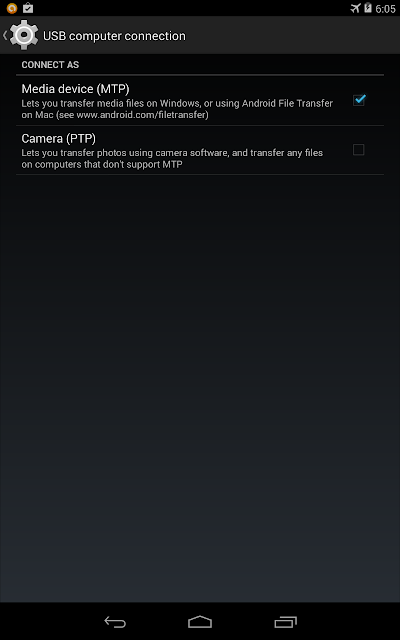
I just had my Nexus 7 2012 for quite some time. Last day I tried to record my screen using adb shell in Kit Kat and installed adb drivers. After installing the drivers for adb i tried connecting my nexus 7 to PC and boom! The USB connections gone berserk. It gets connected and disconnected always.  I Didnt have any idea why it was acting like that. For some time Nexus 7 wasnt even detected in my Device manager. That was shocking, as i suspected something wrong with my Nexus. After plugging to again , but using PTP option now, worked, but can only views picture folders.

Anyway i narrowed my suspicions to the following

  •  I have enabled USB debbugging options from Developer Options. It might cause such an issue
  •  The USB cable from ASUS went died.
  • ADB drivers screwed up
Well after a quick thought I focused my thought on ADB drivers. So I went to Device manager while connecting Nexus 7 in PTP mode. 

Here are the steps i did to fix this issue
  • Disable USB Debugging . Connect your Device in PTP mode.
  • Go to device manager : Right click on My computer->Manage->select Device Manager
  • At the top it will list Android device->Nexus 7 . Right click on it and select Uninstall and,
  • Make sure you tick-"Delete Software " option. Press OK
  • Now remove cable from system. and reconnect it.
  • It will recognize your nexus 7 now.

Hope this was helpful for all those who faced similar issues.
 
Read more »

Wednesday, May 7, 2014

VLC Video Player application Comes Back on iOS


Applications open source video player VLC finally comes back in iOS. The previous application had been there but was withdrawn in 2011. VLC video player is one of the favorites for being able to play all types of video, such as. Mkv and. Avi. In the latest version of VLC for iOS also brings color change feature (filter) video while streaming.

Excerpted from The Next Web, VLC for iOS 2.0.1 version is made ​​from scratch (full rewrite) and run faster. Added VLC for iOS supports the synchronization of media such as uploading via WiFi, integration with Dropbox, passcode lock, background audio playback, and playback speed manipulation. Not to forget the application made ​​by VideoLAN is also capable of reading subtitles and playback on another screen or AirPlay.
Read more »

Tuesday, April 29, 2014

JBL On Tour Micro Ultraportable Speaker

JBL releases the On Tour Micro, an ultraportable speaker that slips easily into a pocket or carrying bag. The speaker features Odyssey full-range transducer to deliver dynamic, big-system sound with 2.2W amplifier power. The ultraportable speaker comes with internal rechargeable lithium-ion battery providing up to 6 hours of playback.

The On Tour Micro has built-in 3.5mm audio cable for connecting any portable device easily, and has an additional 3.5mm jack. A mini USB port and included cable let you charge your JBL On Tour Micro from a laptop or other USB host while you’re listening to your favorite music.
The JBL On Tour Micro is available in black and white, and there are Roxy special edition and Quiksilver special edition.


Read more »