Showing posts with label device. Show all posts
Showing posts with label device. Show all posts
Monday, June 2, 2014
Android 2 3 How to Safely Factory Reset a Gingerbread Device
All devices running the Gingerbread Android OS can be factory reset (or wiped) using similar steps. This tutorial describes what a factory reset actually does and how to do it safely.
What do the factory reset actually do?
The purpose of the factory reset is to wipe the device of all personal information and return the device as closely as possible to its originally purchased state. The only difference is that during the factory reset, however, the latest stable version of the Android OS will likely be installed. For example, if you are running 2.3.3 and 2.3.4 is available for your device, you will likely be upgraded to 2.3.4 when you perform the factor reset.
During the reset all personal information is removed. Optionally your SD card can be wiped as well. All applications are also removed. Android market will remember your paid applications and can optionally reinstall these applications for you. Your free applications typically will not be remembered. Even if the applications are installed to an SD card, these applications will still need to be reinstalled.
When Should I do a Factory Reset
If you are selling or returning a device, a factory reset will prevent somebody from easily stealing your personal data from the device. A factory reset is often a “last ditch” effort to get a very glitchy phone working well again.
Preparing for the Reset
1. Connect your phone to AC through some method. Running out of power during the reset could theoretically brick your phone.
2. Be sure you know your Google username and password. Be sure that Google’s backup is enabled viaSettings -> Privacy -> Back up my data
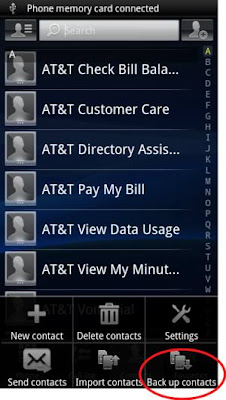
3. Export your contacts to your SD memory card if you wish. Select Contacts and then Back up contacts. Then you can select Memory card.
4. You may want to make a list of all the applications you have on your system. You can find the list through Settings -> Applications -> Manage Applications. Several free android applications will help with this process as well if you wish to try a third party option.
Wiping the Device
This process will completely wipe your device. Even if you backup everything as recommended above, you may lose some application data or settings. This is not a process that should be done lightly.
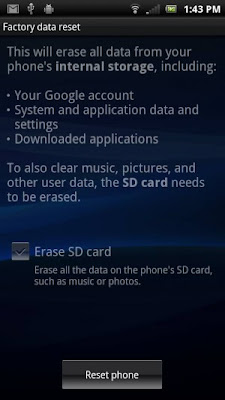
To factory reset, select Settings then Privacy and then Factory data reset.
A warning screen will next appear. From here you can select if you want the SD card in the device erased as well. Press the Erase button. You will have to confirm one last time via the Erase everything button. Your device will reboot and the reset process will be completed.

Monday, May 12, 2014
The Fringe Benefits Of Rooting Your Android Device

The openness of the Android universe can still be unsatisfying for some users, as we all know that even if there are more apps that can be used for devices under this operating system, there are still things that do not exist in this realm-and are only made available in the likes of iOS or Windows. Hence, the next best thing that an Android user can do is to root.
But are you really in the best position to root your Android device? Of course, while a rooted smartphone or tablet becomes more capable of expanding its user scope, it does have its own drawback, including having your manufacturer’s warranty void. Hence it is important that you know whether it is the best decision for you to root your device, otherwise you may ranting regrets in the end, and this is the last thing you want to happen.
So yeah, before ultimately crossing borders, get yourself informed first. Are you really qualified to root?
1. If you’re a fan of all OS platforms, then rooting is the way to go.
The world of Android is so vast and raw, but then again it’s only second to iOS. And most of the premium apps are on iOS, and are sometimes even found on Windows. If you happen to be using an Android and would want to jailbreak the apps found in other operating systems so that you can use them freely, then by all means, root.
Rooting further promotes the reach of your device, as you’re not locked to what its apps can offer. By having your phone rooted, the more convenient it would be for you to make use of certain apps that can help you in your everyday activities, especially when these can also functions on non-Android systems. In short, you get to enjoy all apps you want on one device.

2. You’re able to break the Android-to-Android barriers.
If you think the limits of Android are just between other operating systems, you’re wrong. Android devices from different manufacturers also have their own specs and incompatibilities, which can be very annoying especially when you’re dependent on your gadgets.
A case in point would be the PlayStation Mobile app, which is specifically designed for Android devices. But-you cannot easily use it even if you’re on Android. Why? Because the app is configured for Sony, Sony Ericsson, and HTC devices only. So, if you are a big fan of PlayStation games but are using an LG Optimus, sorry-you still have to wait until Sony releases a more compatible version of the app.
But you do have the option to break the barriers by rooting your device. Yep, according to consumer reviews, PlayStation Mobile works properly on rooted Samsung and LG phones and tablets, and they are now enjoying their favorite PlayStation games the touch-screen style. You wouldn’t want to miss out on that, right?
3. You want to use your phone like the way you do with your PC.

There are people who treat their Android phones as their PCs. Yes, if only they could do open word processors, database spreadsheets, or even create slideshow presentations, they would do so right on their gadgets.
But these can actually be put to reality when you decide to root your Android device. This is important especially for smartphone users, as they are able to view and edit their documents, spreadsheets and other needs right on the go. This is because when you root your phone or tablet, you can create and install custom ROMs for them to function like normal PCs. You take your gadget to the next level of convenience, functionality and versatility without the utterly expensive upgrade cost.
4. You need faster data connection right on the spot.
One of the most spectacular benefits of rooting your phone is that you can easily tether your WiFi and Bluetooth connections regardless of the place you’re at. Let’s face it: we’re all dependent on data connection nowadays, right?
Through better tethering options from rooting, the more capable you become in increasing WiFi signal, sharing data connection with your friends, and controlling the amount of data that you want to be used by others becomes a rather easy task.
5. You’re not happy with your touch screen typing options.
There are phones and tablets that have ridiculous keypad and touch screen functions, and at times you cannot control them. With that said you tend to type slowly and not mess up with your screen as much as you can. But hey, shouldn’t you be suing your manufacturer’s phone for that?

Since you can’t, the best resort you can do is to import new keypad and touch screen controls on your Android device, as there actually special custom apps that provide you with better typing functionality. But you cannot easily install them on your phone as they are barred by your current software configurations. Thus, the only way to go is for you root.
6. You want to decrease your lag time because of too many open apps.
If you are the crazy app user, then it is common for you to get frustrated over slow memory and storage performance, as your apps are kept at a limited space. However, through effective rooting, your phone becomes more capable of utilizing your storage and memory space, thus you get to load your apps without them lagging.
If you happen to fall on any of these categories mentioned above, then looking at the ways to root your Android device would be a good step to start with. True, you may have to decide on rooting your phone at your own risk, but as you can see, there are many ways in which you can do the process as safely as possible.
You cannot just stay content with what you currently have, and what you have not, especially when you know that you need more. With your phone rooted, you have more power to use not just the apps, but your phone’s other features to the fullest, just the way you like it.
Friday, May 9, 2014
Solve MTP Issue On Nexus 7 Device Not Detected x64 Windows
How To Solve Nexus 7 Not Detected As MTP in Windows 64bit
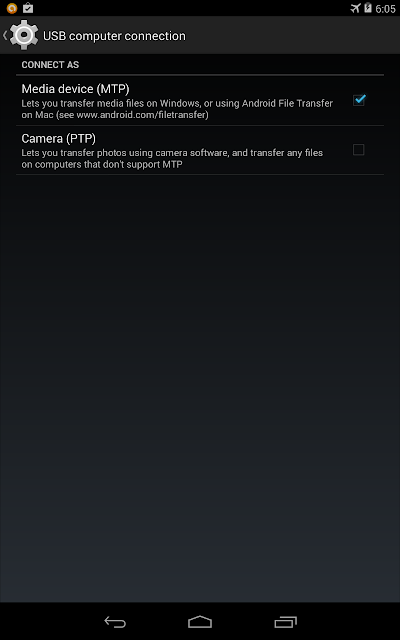
I just had my Nexus 7 2012 for quite some time. Last day I tried to record my screen using adb shell in Kit Kat and installed adb drivers. After installing the drivers for adb i tried connecting my nexus 7 to PC and boom! The USB connections gone berserk. It gets connected and disconnected always. I Didnt have any idea why it was acting like that. For some time Nexus 7 wasnt even detected in my Device manager. That was shocking, as i suspected something wrong with my Nexus. After plugging to again , but using PTP option now, worked, but can only views picture folders.
Anyway i narrowed my suspicions to the following
- I have enabled USB debbugging options from Developer Options. It might cause such an issue
- The USB cable from ASUS went died.
- ADB drivers screwed up
Here are the steps i did to fix this issue
- Disable USB Debugging . Connect your Device in PTP mode.
- Go to device manager : Right click on My computer->Manage->select Device Manager
- At the top it will list Android device->Nexus 7 . Right click on it and select Uninstall and,
- Make sure you tick-"Delete Software " option. Press OK
- Now remove cable from system. and reconnect it.
- It will recognize your nexus 7 now.
Hope this was helpful for all those who faced similar issues.
Subscribe to:
Posts (Atom)