Showing posts with label install. Show all posts
Showing posts with label install. Show all posts
Friday, October 10, 2014
Odin How to Flash Install I9100XILA2 Android 2 3 6 Stock ROM on Samsung Galaxy S II 2
The firmware update build I9100XILA2 is an upgrade to Android 2.3.6 Gingerbread on Samsung Galaxy S II. This is the newest official firmware update by Samsung releases this year with a build or modified date of January 13, 2012 . This firmware was officially rolled out in Italy. One thing new on this firmware is that it features a new lockscreen that looks like an Android Ice Cream Sandwich with touchwiz. There is an improvement in battery life usage, battery drains too slow which is a bit impressive. Some several features were added, more faster and much better than previous build I9100XXKL1.
Sneak peek of the new lockscreen.

Firmware details:
PDA: I9100XILA2
CSC: I9100XWKI1
PHONE: I9100OXIK1
Kernel: 2.6.35.7-191000XILA@-CL889496
root@DELLBUILDER01 #2
Version: Android 2.3.6 Gingerbread
Build: January 13, 2012

credits to turborider for the screenshots
Some few other details of changes.
- Various bugs were fixed from previous version
- Android 4.0 styled Lockscreen Android 4.0 styled lockscreen lockscreen with similarity from Galaxy Note
- Wi-Fi chip bug has been fixed
Flashing the Stock ROM I9100XILA2 with Odin Downloader tool.
This method if you are having issues updating with KIES or if you wanted to install it if you came from other region outside Italy.
This guide uses the original stock I9100XILA2 with Italy default CSC file ITV.
Grab the stock ROM via Sammobile:
GT-I9100_I9100XILA2_I9100OXIKK1_ITV
Extract it after download, the password is: samfirmware.com
If you want to upgrade but came from other region , you can use the Frankenstein version which is by flashing desired CSC file that is built for your country. You can grab it here at Intratechs Frankenstein Firmware file.
Before proceeding, do things as follows to avoid any future problem issues.
- Make a back-up copy of all important data stored from the device.
- Make sure that the battery is at-least 80% charge.
- Use a good condition USB cable wire a PC with a working USB serial ports.
2. Load the extracted file on the PDA field.
Click on the PDA button then select the I9100XILA2_I9100XWKI1_I9100OXIKK1_HOME.tar.md5
DO NOT check the RE-PARTITION" checkbox.
3. Then set the phone in Download Mode: Press and hold Volume Down, Home and Power button.
4. Once in Download mode, connect to PC,.
5. When Odin recognize it and the phone is properly connected, hit the "START" button.

6. Wait until the flashing completely finish.
 Thats it! if you experience bootloops after flashing. Do full factory reset or wipe data cache.
If you want to get root, look for chainfires CF-ROOT kernel released at XDA.
Sneak peek of the new lockscreen.

Firmware details:
PDA: I9100XILA2
CSC: I9100XWKI1
PHONE: I9100OXIK1
Kernel: 2.6.35.7-191000XILA@-CL889496
root@DELLBUILDER01 #2
Version: Android 2.3.6 Gingerbread
Build: January 13, 2012

credits to turborider for the screenshots
Some few other details of changes.
- Various bugs were fixed from previous version
- Android 4.0 styled Lockscreen Android 4.0 styled lockscreen lockscreen with similarity from Galaxy Note
- Wi-Fi chip bug has been fixed
Flashing the Stock ROM I9100XILA2 with Odin Downloader tool.
This method if you are having issues updating with KIES or if you wanted to install it if you came from other region outside Italy.
This guide uses the original stock I9100XILA2 with Italy default CSC file ITV.
Grab the stock ROM via Sammobile:
GT-I9100_I9100XILA2_I9100OXIKK1_ITV
Extract it after download, the password is: samfirmware.com
If you want to upgrade but came from other region , you can use the Frankenstein version which is by flashing desired CSC file that is built for your country. You can grab it here at Intratechs Frankenstein Firmware file.
Before proceeding, do things as follows to avoid any future problem issues.
- Make a back-up copy of all important data stored from the device.
- Make sure that the battery is at-least 80% charge.
- Use a good condition USB cable wire a PC with a working USB serial ports.
Disclaimer: Use this guide at your own risk. We shall not held any responsibility for any damage might cause to your smartphone.1. Run Odin v1.85
2. Load the extracted file on the PDA field.
Click on the PDA button then select the I9100XILA2_I9100XWKI1_I9100OXIKK1_HOME.tar.md5
DO NOT check the RE-PARTITION" checkbox.
3. Then set the phone in Download Mode: Press and hold Volume Down, Home and Power button.
4. Once in Download mode, connect to PC,.
5. When Odin recognize it and the phone is properly connected, hit the "START" button.

6. Wait until the flashing completely finish.

If you want to get root, look for chainfires CF-ROOT kernel released at XDA.

Thursday, September 11, 2014
Install JellyBean On HTC Explorer A310E Pico JellySlash CM10
How To Install JellyBean CM10 On HTC Explorer A310E Pico [JellySlash]

HTC Explorer is a great entry level budget android phone with loads of stuff. Thanks to the mighty HTC hardware this little device can power even the jellybean with a 600MHz CPU.
Before Starting: You Can Also Check-
1. Root HTC Explorer A310E
2. Install CWM Recovery on HTC Explorer
3. Install ICS On HTC Explorer using CyanogenMod9
HTC Explorer can really handle the ROM without much lags or any sort of disturbances.
Warning:
Instructions: Must Read
Before Installing The ROM You have To Install CWM Recovery. It can be done only after rooting your phone. Backup all your Data since installing new rom will erase phone data.
We arent responsible for any damage happened to your phone. Rooting can Void Warranty. Dont try this guide if you have no idea about rooting or any of the mentioned procedures.
Before Starting:
1. Root Your Phone + Unlock bootloader. Click here for procedure.
2. You have to install A CWM recovery.- Click here
3. Make sure you have atleast 65% of battery charge to spare.
4. Download The .zip ROM from source-Download
5. You wont get Google Apps in this Rom, so you have to get the zip for Gapps installation. Download them for CM10.
Lets Start:
1. Download .zip ROM file and kernel file from the link.
2. Connect your phone to PC using USB cable- dont forget to enable USB debugging
3. Copy both files to the external memory. Don’t extract them. ( Its better to place files on SD). If you want you can place the GApps in phone, copy the files also.
4. Disconnect mobile from PC and Turn it off by long pressing power button.
5. Enter into the bootloader mode. To enter into bootloader mode, Hold Volume Down + Power Button simultaneously until bootloader mode appears.
6. In bootloader menu navigate using volume keys and highlight recovery and enter into recovery mode by pressing Power button. You will now reach Custom recovery.
7. Now wipe "data/factory reset" and then " wipe cache partition " to wipe all the data and caches respectively on the phone.
8. Now lets Flash the ROM. Select install zip from sdcard and then choose zip from sdcard. Then select the CyanogenMod 10 file and install.
9. The installation takes some time to finish.
Note: If you want to install GAPPS then repeat the step of install zip from sdcard and chose zip from sdcard. But this time chose Gapps package.
10. After successful flashing of both the files, select +++++Go back+++++ and then reboot system now. Normally the first boot takes quite a lot of time. Please be patient.
You have successfully Installed Jellybean On HTC Explorer Pico using CM10.
Friday, August 15, 2014
How to Upload and Install Wordpress Theme

There are thousands WordPress themes, free and paid (premium) on internet. You can change the appearance of your WordPress blog become more interesting with another WordPress theme. If you want to look for free WordPress theme download references, you can go to our previous article here .
How to Install Wordrpress Theme
1. Go to WordPress Dashboard > Appearance > Themes


3. Search themes provided by WordPress, type keyword on the search box, then click "Search"

4. If youve found a theme, click on "Install Now"

5. Click "Activate"
6. Done.
How to Upload Wordpress Theme
1. Go to WordPress Dashboard > Appearance > Themes
2. Click on "Install Themes" tab

4. Browse your file by clicking on "Choose File"<br/>
5. Then, Click "Install Now"

6. Click "Activate"
7. Done.
Tuesday, June 17, 2014
How to Install rooted 2 3 3 Gingerbread update on HTC EVO 4G
Will updating my HTC EVO 4G with the OTA while Rooted ruin my phone? Will I be able to keep my root status?
If you really want to update to Gingerbread 2.3.3 Gingerbread update but confused and do not want to lose the rooted status of your device, this simple procedure will help you out those confusion. Xhausts from XDA had already cooked the OTA Android 2.3.3 update and its already rooted.
These ROMS are based from original stock ROM update and has been modified and called ROOTED Odexed & De-Odexed ROMS.
 All you need to do is grab a copy of below ROMS and flash it through Recovery.
Stock Update
Stock ROM with SU Fix - No Wipe Needed If Coming From A Stock Sense ROM:
4.22.651.2 Rooted & Odexed - updated 06/05/11
4.22.651.2 Rooted & De-Odexed - updated 06/05/11
Firmware:
Must be flashed through hBoot/Fastboot! Not Recovery.
PC36IMG - Radio, WiMAX and PRI Updates (MD5: 2E5C63EA59891A69F6D55C257CF165D5)
View and read the original thread for further instruction.
If you really want to update to Gingerbread 2.3.3 Gingerbread update but confused and do not want to lose the rooted status of your device, this simple procedure will help you out those confusion. Xhausts from XDA had already cooked the OTA Android 2.3.3 update and its already rooted.
These ROMS are based from original stock ROM update and has been modified and called ROOTED Odexed & De-Odexed ROMS.

Stock Update
Stock ROM with SU Fix - No Wipe Needed If Coming From A Stock Sense ROM:
4.22.651.2 Rooted & Odexed - updated 06/05/11
4.22.651.2 Rooted & De-Odexed - updated 06/05/11
Firmware:
Must be flashed through hBoot/Fastboot! Not Recovery.
PC36IMG - Radio, WiMAX and PRI Updates (MD5: 2E5C63EA59891A69F6D55C257CF165D5)
View and read the original thread for further instruction.
Wednesday, May 28, 2014
Install Android 4 1 Jelly Bean Apps on Android Devices with Custom Recovery
Although some Android devices at present have received the upgrade of Android 4.1 Jelly Bean, there are still many Android phones or tablets running Android 4.0 ICS waiting for the official or custom Jelly Bean releases. Is it possible to install Android 4.1 on any Android devices? Seems the answer is no, but the good news is that we can install the Jelly Bean apps using the custom recovery to experience Jelly Bean applications even without upgrading the device.
 You may know, Android 4.1 Jelly Bean has brought us some new and great applications like Google Ears(also known as Google Sound Search), improved Face Unlock, Google Books, etc. Following is the guide to download and install from recovery a package and through this you can enjoy the Android 4.1 Jelly Bean applications on ICS devices.
The package contains Google Books, Google Calendar, Google Currents, Google Ears, Google Earth, Google Magazines, Google Maps, Google Music, Google News, Google Play, Google+, Google Wallet, Email Client, Face Unlock, Gallery, Gmail, Noise Field, Phase Beam, Street View, Talk Back, Video Editor, Videos.
Warning
Now, you can enjoy the Android 4.1 apps on your Android 4.0 ICS device.
Related article:
Three Methods to Manually Update Nexus 4, Nexus 7 and Nexus 10 to Android 4.2.2
Read more »

The package contains Google Books, Google Calendar, Google Currents, Google Ears, Google Earth, Google Magazines, Google Maps, Google Music, Google News, Google Play, Google+, Google Wallet, Email Client, Face Unlock, Gallery, Gmail, Noise Field, Phase Beam, Street View, Talk Back, Video Editor, Videos.
Warning
- This guide aims to the Android device running Android 4.0 Ice Cream Sandwich.
- No guarantee that these instructions will work under your specific and unique circumstances.
- Use the instructions is at your risk. Read and understand the whole guide first to take actions.
- Root is required.
- You need an Android 4.0 Ice Cream Sandwich device with custom recovery such as ClockworkMod Recovery and TWRP Touch Recovery .
- You need to back up all personal data on your device to make sure you have a copy of your personal data (contacts, SMS, MMS, Internet settings, Wi-Fi passwords, and the like).This steps you can read the articles how to sync your data to the cloud and how to create local backups of your mobile data.
- Download the Jelly Bean Applications package to your computer (JB Apps.zip, 49.85 MB)
- Copy and paste the Jelly Bean Applications package to your device’s SD card.
- Turn off the device and reboot to ClockworkMod Recovery or TWRP Recovery.
- Select Install ZIP from SD Card> Choose ZIP from SD Card. Select the JB Apps.zip file, select it, and confirm the action. Then the installation will start. When the installation is done, reboot your system.
Now, you can enjoy the Android 4.1 apps on your Android 4.0 ICS device.
Related article:
Three Methods to Manually Update Nexus 4, Nexus 7 and Nexus 10 to Android 4.2.2
Tuesday, May 13, 2014
Install JellyBean On Samsung Galaxy Y GT S5360 JellyBlast
How To Install JellyBean On Samasung Galaxy Y GT-S5360
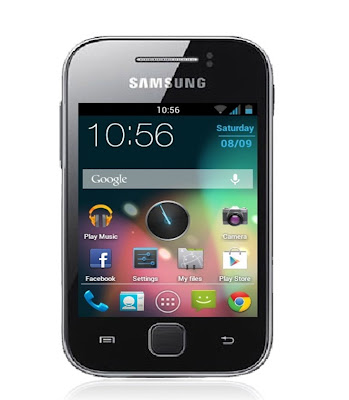
Samsung Galaxy Y is a cute little budget android phone which has caught the hearts of young people in India and over the world. The device comes with android 2.3 Gingerbread, which is far outdated in present scenario, with Jellybean overtaking GB earlier this year in terms of users. Those who have used Y for a long time must have been bored by the old GB interface. So we can show you how to install JellyBean ROM in your favorite Galaxy Y.
Before starting Check: How To Root And Install CWM Recvovery :Galaxy Y
[Edited] For those who experienced IMEI loss, bricking etc, here is the method to revert back to stock Rom- How To UnBrick , Unroot Galaxy Y
Warning:
- Create back-up of all your data
- Phone should possess atleast 65% battery life left
- We arent responsible for any problems with your device, Do this at your own risk.
- Rooting Voids Warranty
Instructions: Must Read
[Edited] Important: Backup your IMEI number ;many have faced network loss due to loss of IMEI number.
Install Jellybean:
- Before Starting Root Your device and Install CWM Recovery- Click here
- Download the JellyBlast Rom from 4share by searching " JellyBlastGenEDSigned.zip" ( about 122 MB)
- Using USB connect your phone to Pc and copy the downloaded Rom file to your SD card.
- Disconnect device from PC.
- Boot into Recovery Mode-( Press Home+Volume Up+Power buttons)
- Now you can use home button to select and Volume buttons to navigate.
- Next you have to wipe all of the given stuffs: [ wipe format, wipe system, wipe data, wipe boot, wipe dalvick, wipe cache ]
- Next select "install zip from SD card" and in the coming page select "choose zip from SD card".
- Now select the downloaded "JellyBlast.zip" rom file from your SD card and confirm it.
- Now you have to wait till the process is finished. It will take some time.
- When Jellybean is successfully installed, you will get a confirmation. Next go to main menu and select" Reboot System Now", and wait for it to restart.
- Please note that the first boot takes quite some time, be patient.
Note: If your device hangs on boot screen/welcome screen, no need to worry. Just do all these steps again after removing the battery and reloading it.
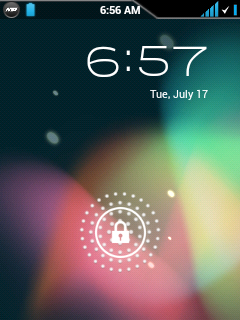
There you go! Your Galaxy Y is now flashed with JellyBean Rom.
Monday, May 12, 2014
Guide on How to Install a leaked Honeycomb on HTC flyer
From a news month ago that HTC spokesperson has confirmed the Honeycomb upgrade for HTC flyer will be made available as soon as possible after it releases. Its been little while ago since that report claimed. But now, you might probably already know, The Beta version of the Honeycomb for HTC Flyer has leaked a few days ago. Advance users already tested the said ROM even its been somewhat very complicated to install. The process reportedly tested and works on a Euro WWE 32 GB 3G Flyer and may also work with other variants but unconfirmly works well so far.
Heres a few screenshoots just for a brief details of what have we got to the the HTC Flyer Honeycomb update.


Important Things Needs to Consider Before Following this Guide:
* This process is recommended for experts only!
* This guide is only tested on a Euro WWE 32GB 3G Flyer - it may work on other configurations, but this is untested (id advise reading the topic to see if anyone has experimented with your configuration!)
* Anything you do from this point forward is at your own risk - my Flyer works and ive resurrected a couple of others, but I take no responsibility if it all goes horribly wrong. You COULD brick your tablet
* Do NOT under any circumstances run the RUU in its entirety nor fastboot flash rom.zip - this will make irreversible changes that you dont want!
* Be careful if you flash any RUUs or do anything that could revert you to S-ON on a broken system - this could leave you stuck
The installing process needs to ensure that you have an RUU that matches the ROM version of your HTC Flyer just a back up if anything went wrong and can roll back the process. You can follow the complete step by step installation guides from Paul of Android Modaco here on this thread.
Heres a few screenshoots just for a brief details of what have we got to the the HTC Flyer Honeycomb update.


Important Things Needs to Consider Before Following this Guide:
* This process is recommended for experts only!
* This guide is only tested on a Euro WWE 32GB 3G Flyer - it may work on other configurations, but this is untested (id advise reading the topic to see if anyone has experimented with your configuration!)
* Anything you do from this point forward is at your own risk - my Flyer works and ive resurrected a couple of others, but I take no responsibility if it all goes horribly wrong. You COULD brick your tablet
* Do NOT under any circumstances run the RUU in its entirety nor fastboot flash rom.zip - this will make irreversible changes that you dont want!
* Be careful if you flash any RUUs or do anything that could revert you to S-ON on a broken system - this could leave you stuck
The installing process needs to ensure that you have an RUU that matches the ROM version of your HTC Flyer just a back up if anything went wrong and can roll back the process. You can follow the complete step by step installation guides from Paul of Android Modaco here on this thread.
Subscribe to:
Posts (Atom)