Sunday, September 21, 2014
AOC Releases Two Smart Monitor Based on Android
.png)
Smart devices have become products that can not get out of the lifestyle. Following the trend of Android, AOC launched several products All-in-One PC-based mobile platform that Google made. Both All-in One is the Android-based Smart Smart AIO AIO 58P and 72P. Line of All-in-one from the AOC can be a great photo frames, IP-based TV and a set top box for the device, and connect to the PC via HDMI / VGA monitor should ordinary.
According to the AOC, they are targeting Smart AIO for consumer and business segments. For consumers aimed at the family, especially with a large screen will maximize the pleasure and comfort of the child. While in the business segment, AOC reveals that Smart AIO can be used for the purposes of exploring the internet is more compact and modern.
Smart AIO 58P features a 21.5-inch screen Full HD (1920x1080p), Android 4.0 Ice Cream Sandwich, with a WiFi USB Dongle, integrated SDHC Card Reader, integrated speakers, USB and LAN connectivity, while Smart AIO 72P already using Android Jelly Bean, integrated WiFi and an integrated HD webcam. Both price and availability have not been revealed by the AOC.

Saturday, September 20, 2014
Oppo Find 5 Mini Review
 |
| Oppo Find 5 Mini |
Chinese mobile phone manufacturer has just released the Oppo Find 5 new mini models . Similar to the version of the " mini " from other vendors ( HTC or Galaxy S4 ) , this variant also comes with exactly the same form with the Find 5 , only with a more petite size .
The main difference is the brothers lies in the size of the screen that is 4.7 inches narrower and the photographer lens quality is lower. If 13Mpix camera equipped predecessor , the armed miniature lens in just 8 MP rear and 2 MP front facing camera .
Oppo Find 5 mini is a change in the Find 5 more compact size . Consequently , Find 5 mini more easily inserted into a pocket or put in a bag . The position of the power button located on the right wing flattened perpendicular to the volume rocker on the left . So you need to lift or remove the battery to insert the SIM card .
Same with N1 Oppo , Oppo Find 5 mini offers the Android operating system with different shades . Despite carrying the popular platform Android 4.2 Jelly Bean , interfacing Find mini 5 looks very different from other Android phones . Thanks to the modification of the user interface by Oppo named ColorOS , Find 5 mini performed with a variety of features that do not appear in the Android general . or you can activate the camera feature on any page by pinching the screen with three fingers at once . As always , you can download content or other Android-based apps via the Play Store . Same with other Oppo models , Find 5 is also carrying two mini card ( GSM - GSM ) .
The main difference is the brothers lies in the size of the screen that is 4.7 inches narrower and the photographer lens quality is lower. If 13Mpix camera equipped predecessor , the armed miniature lens in just 8 MP rear and 2 MP front facing camera .
Oppo Find 5 mini is a change in the Find 5 more compact size . Consequently , Find 5 mini more easily inserted into a pocket or put in a bag . The position of the power button located on the right wing flattened perpendicular to the volume rocker on the left . So you need to lift or remove the battery to insert the SIM card .
Same with N1 Oppo , Oppo Find 5 mini offers the Android operating system with different shades . Despite carrying the popular platform Android 4.2 Jelly Bean , interfacing Find mini 5 looks very different from other Android phones . Thanks to the modification of the user interface by Oppo named ColorOS , Find 5 mini performed with a variety of features that do not appear in the Android general . or you can activate the camera feature on any page by pinching the screen with three fingers at once . As always , you can download content or other Android-based apps via the Play Store . Same with other Oppo models , Find 5 is also carrying two mini card ( GSM - GSM ) .
Friday, September 19, 2014
Samsung ICS 4 0 for Galaxy S i9000
Android ICS 4.0 for Galaxy S (Custom ROM) Download the custom ROM ICS 4.0 from here
http://www.filefat.com/wrwo9s56g3jx
http://www.multiupload.com/KX50EVTCHB
.
(Important! It’s the first port of ICS and it’s still very much in heavy development. So, expect this custom ROM to be updated more than frequently in the coming days, until it gets as good as you hope it to be. So, always check and download the latest version available at the aforementioned link. Rest of the process is same)
Transfer it to your phone’s sdcard.
You need to have ClockWorkMod (CWM) recovery installed on your phone. If you don’t have it already do this:
Install XXJVS firmware first.
Root and install CWM recovery on XXJVS.
Power Off your Galaxy S. Wait for 5-6 seconds until you feel the vibration to confirm complete switch off.
Then, press and hold these 3 buttons together: VolumeUP+Home+Power till the Galaxy S logo shows up on screen. You’ll soon see the CWM recovery.
In recovery, use Volume keys to scroll up and down and power key to select an option. Use back key to go back.
Now, select “install zip from sd card”. Then, select “choose zip from sd card”. Now, browse through sd card and select the file ICS Custom ROM you downloaded in step 1 and transferred in step 2 above. Select “Yes – Install ___” on the next screen.
This will flash the required files on your phone and will reboot your phone into recovery again. This is a slightly different recovery now.
Do Wipe Data/Factory Reset
Do Wipe Cache Partition
Now, you need to flash the ICS Custom ROM file again. So, select “install zip from sd card”, select “choose zip from sd card”, browse and select the same file again and choose “Yes – Install ___” again.
This time, the ICS Custom ROM will be flashed actually and after it’s installed, your phone will reboot with ICS lock screen visible upon boot. (if the phone gets stuck while booting up, showing fugumod thing at the bottom, then remove the battery and insert it back, go to recovery mode and repeat from step 9 again. This worked for me. Twice!)
—————————————————————————————————

Please note the version posted will be a proof of concept version, and IS NOT for daily usage nor for people unknown to flashing etc.
It is being posted for development purposes only, however Lttldvl and I wish for this to be an open community, and which for other developers to help fix the issues that are still present.
The rom DOES NOT currently get passed the lockscreen, as touch sensors and screen resolution need fixed.
Edit: using 2 fingers or back key and menu key will get you past lockscreen.
This is a product of open source, let’s see what WE CAN ALL DO with it..!
Source: xda developers.
http://www.filefat.com/wrwo9s56g3jx
http://www.multiupload.com/KX50EVTCHB
.
(Important! It’s the first port of ICS and it’s still very much in heavy development. So, expect this custom ROM to be updated more than frequently in the coming days, until it gets as good as you hope it to be. So, always check and download the latest version available at the aforementioned link. Rest of the process is same)
Transfer it to your phone’s sdcard.
You need to have ClockWorkMod (CWM) recovery installed on your phone. If you don’t have it already do this:
Install XXJVS firmware first.
Root and install CWM recovery on XXJVS.
Power Off your Galaxy S. Wait for 5-6 seconds until you feel the vibration to confirm complete switch off.
Then, press and hold these 3 buttons together: VolumeUP+Home+Power till the Galaxy S logo shows up on screen. You’ll soon see the CWM recovery.
In recovery, use Volume keys to scroll up and down and power key to select an option. Use back key to go back.
Now, select “install zip from sd card”. Then, select “choose zip from sd card”. Now, browse through sd card and select the file ICS Custom ROM you downloaded in step 1 and transferred in step 2 above. Select “Yes – Install ___” on the next screen.
This will flash the required files on your phone and will reboot your phone into recovery again. This is a slightly different recovery now.
Do Wipe Data/Factory Reset
Do Wipe Cache Partition
Now, you need to flash the ICS Custom ROM file again. So, select “install zip from sd card”, select “choose zip from sd card”, browse and select the same file again and choose “Yes – Install ___” again.
This time, the ICS Custom ROM will be flashed actually and after it’s installed, your phone will reboot with ICS lock screen visible upon boot. (if the phone gets stuck while booting up, showing fugumod thing at the bottom, then remove the battery and insert it back, go to recovery mode and repeat from step 9 again. This worked for me. Twice!)
—————————————————————————————————
Please note the version posted will be a proof of concept version, and IS NOT for daily usage nor for people unknown to flashing etc.
It is being posted for development purposes only, however Lttldvl and I wish for this to be an open community, and which for other developers to help fix the issues that are still present.
The rom DOES NOT currently get passed the lockscreen, as touch sensors and screen resolution need fixed.
Edit: using 2 fingers or back key and menu key will get you past lockscreen.
This is a product of open source, let’s see what WE CAN ALL DO with it..!
Source: xda developers.
 +
+  = Thanks
Wednesday, September 17, 2014
How To Change Blogger Post URL and Custom Permalink URL
Whenever we publish a new post, Blogger automatically generates the post URL according to the title of the blog post. For example, if the post title is How to Create Custom Post URL in Blogger? then Blogger will generate http://www..com/2013/07/how-to-create-custom-post-url-in-blogger.html as the post URL. If you want to change this URL to a small SEO friendly one here comes the solution.
Recently Blogger introduced an option named Permalink in Post settings to edit the post URL to your desired one. In this post I included the simple steps to use custom permalink in Blogger blog. Here are the steps.
Steps:
Note : If you have Permalink Option in your Blogger Post Settings Start fromStep 2.
1. Open a post you wish to edit the URL or Create a New Post.
(If you are editing a published post, then click on Revert to draft button to enable Permalink editing.)

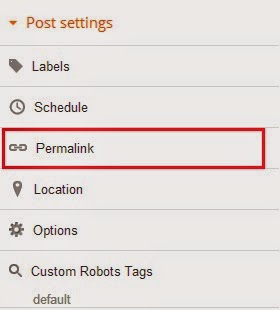
2. Then click Permalink in Post Settings.
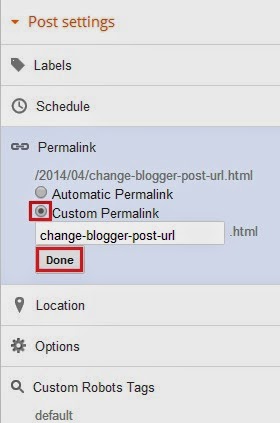
3. Now check the Custom URL radio button and type the new post URL in Custom URL text field. After changing the URL dont forget to click Done!
4.Finally, Click Publish .
Thats it...Now check the post URL it will be changed to the modified one !
Note : If you are changing URL of a old post, please note down the old URL before changing to a new one. Because your old post URL may be submitted to search engine or social websites. So If any one come to your blog using the old URL he will get a 404 not found error. Dont Worry ! you can Redirect your old URL to new URL using Custom Redirects feature of Blogger.
Tuesday, September 16, 2014
BlackBerry Curve 9320 Armstrong Price Specifications
BlackBerry Curve 9320 Armstrong - Price & Specifications - BlackBerry Curve 9320 comes with support for 2G GSM network (900/1800 MHz) and 3G HSDPA. The third generation network was clearly not on the Curve 9220.
It has a dimension of 109 x 60 x 12.7 mm and weighs 103 grams, makes it looks so elegant and solid when held. Using a TFT screen that can produce up to 65 thousand colors covering inches 2:44 add user satisfaction while watching videos or playing games. Supported cameras are slightly higher than 9220, allowing you to take a very good picture. BlackBerry Curve 9320 Armstrong has nice features such as MP3/MP4 player and FM radio, and the game also features added in it. There is also a microSD card slot that can be installed up to 32 GB.
For business data transfer we leave it to Bluetooth and data cable. Because of Bluetooth wireless technology not only frees the hand, your device can communicate wirelessly up to a distance of 1 meter. While the USB port to simplify and speed up the transfer of data between your digital devices.
To meet the needs of mobile users, channel GPRS, EDGE, and HSDPA is embedded in it. Added also a Wi-Fi 802.11 b / g / n that can be used in hotspot areas. The operating system uses the BlackBerry OS 7.1 and in sandingkan with ROM and RAM of 512 MB. For the problem of using battery type Li-Ion 1450 mAh with a strength that can last for 432 hours of normal time and 7 hours of talk time.

Specifications BlackBerry Curve 9320:
- General 2G Network GSM 850/900/1800/1900, 3G Network HSDPA
- Size Dimensions 109 x 60 x 12.7 mm, Weight 103 g
- Display Type TFT, 65K colors, Size 320 x 240 pixels, 2:44 inches (~ 164 ppi pixel density), - Touch-sensitive optical trackpad
- Sound Alert types Vibration; MP3 ringtones, Loudspeaker Yes, 3.5mm jack Yes
- Memory Phonebook Practically unlimited entries and fields, Photocall, Call records Practically unlimited, Internal 512 MB ROM, 512 MB RAM,Card slot microSD, up to 32 GB
- Data GPRS Yes, EDGE Yes, 3G HSDPA, 7.2 Mbps; HSUPA, 5.76 Mbps,WLAN Wi-Fi 802.11 b / g / n, Bluetooth Yes, v2.1 with A2DP,USB Yes, microUSB v2.0
- Main Camera 3.15 MP, 2048 × 1536 pixels, LED flash, Video Yes,Secondary No, Features Geo-tagging, image stabilization
- Features OS BlackBerry OS 7.1, Radio Stereo FM radio with RDS, Messaging SMS (threaded view), MMS, Email, Push Mail, IM, RSS, HTML Browser, Sensors Accelerometer, compass, Color Black, GPS Yes, with A-GPS support, Java No : BBM key, MP3/eAAC + / WMA / WAV / Flac player, MP4/H.263/H.264/WMV player, Organizer, Document viewer, Voice memo / dial, Predictive text input
- Battery Type Standard battery, Li-Ion 1450 mAh, Stand-by Up to 432 h, Talk time Up to 7 h
BlackBerry Curve 9320 price of about $ 260.
Subscribe to:
Posts (Atom)