Showing posts with label url. Show all posts
Showing posts with label url. Show all posts
Wednesday, September 17, 2014
How To Change Blogger Post URL and Custom Permalink URL
Whenever we publish a new post, Blogger automatically generates the post URL according to the title of the blog post. For example, if the post title is How to Create Custom Post URL in Blogger? then Blogger will generate http://www..com/2013/07/how-to-create-custom-post-url-in-blogger.html as the post URL. If you want to change this URL to a small SEO friendly one here comes the solution.
Recently Blogger introduced an option named Permalink in Post settings to edit the post URL to your desired one. In this post I included the simple steps to use custom permalink in Blogger blog. Here are the steps.
Steps:
Note : If you have Permalink Option in your Blogger Post Settings Start fromStep 2.
1. Open a post you wish to edit the URL or Create a New Post.
(If you are editing a published post, then click on Revert to draft button to enable Permalink editing.)

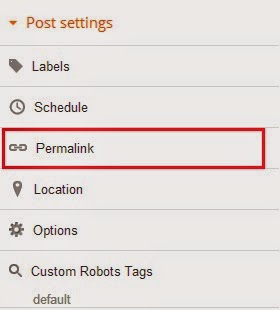
2. Then click Permalink in Post Settings.
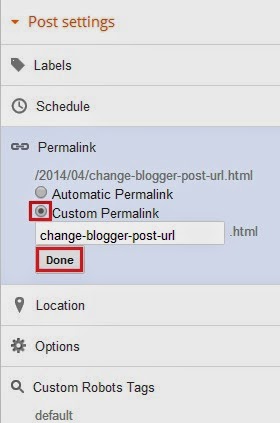
3. Now check the Custom URL radio button and type the new post URL in Custom URL text field. After changing the URL dont forget to click Done!
4.Finally, Click Publish .
Thats it...Now check the post URL it will be changed to the modified one !
Note : If you are changing URL of a old post, please note down the old URL before changing to a new one. Because your old post URL may be submitted to search engine or social websites. So If any one come to your blog using the old URL he will get a 404 not found error. Dont Worry ! you can Redirect your old URL to new URL using Custom Redirects feature of Blogger.

Tuesday, June 24, 2014
How to Create Custom Post URL in Blogger

When you publish a post in blogger, normally you dont need to create or set an URL. WordPress has the same feature. Post URL is automatically created from post title. But sometimes it maybe too large. And sometimes it may not be possible to show the full title in the URL. As a result it doesnt carry actual meaning. In that case you can customize your post URL.
Look at the Link below:
http://www..com/2012/10/download-paid-android-apps-for-free.html
This link is related to the post- Download Paid Android Apps For Free
The title of the post carry the full meaning. You might notice that- here the URL doesnt carry the proper meaning. It only shows- how to check cell phones quality using. A user may not understand what does the post include just by URL.
But you can customize the URL in such a way so that it expresses a meaning and have precision. And certainly it will be easier for your visitors to understand what the post is all about when they just see the post URL.
You might notice the structure of an URL. There are 3 parts in the blogger URL. Such as-
- Home Page URL : http://www..com/
- Date : 2012/10/
- Post URL : download-paid-android-apps-for-free.html
Hope now you realize how your post URL is created.
If you wanna create custom URL for your post you have to use the last part. You cant omit the home URL and date. Because omitting these two parts will affect the uniqueness of your URL.
By this time you should have a proper knowledge about blogger and post URL. Now lets see how to create Custom URL :
- Make sure youre signed in to your blogger account.
- Create New Post from anywhere that you do usually.
- Look at the right- Post Settings > Permalink.
- There are two options- Automatic and Custom. Look at the image below for help.
- Type your desired words in the custom box separated by a hyphen (-) or dot (.). Remember- space, ?, !, / these are not allowed here. And try to avoid underscore ( _ ). Because it will not separate your words.
- When you finish hit on the Done button. Thats it.

Thus you can optimize your blog posts permalink for more visitors. You can also look at this posts URL for example.
- My post title is- List of Best Free Proxy Sites
- My URL is- http://www..com/2013/06/list-of-best-free-proxy-sites.html
If I didnt set a custom URL then it will somewhat like that-
http://www..com/2013/06/list-of-best-free-proxy-sites-in-2013.html
Though it carries a full meaning, but look at the URL size- Too large. So creating custom URL will also let your reduce the size of the post URL.
Hope you enjoy this post!
Sunday, May 11, 2014
Add Your Blog Site URL To Google Search Listings

This is a great article which all blogger should take note of, creating nice and informative post is not the only best way to increase your blog/site traffic and ranking, but also optimizing your blog/site by submitting your blog URL to various search engines. you can submit your blog/site to Google search engine listing so your blog information on indexed, crawling and search traffic of your blog/site at Google webmaster tools.
To add your blog/site to Google simply follow the few steps below.
Go to http://www.google.com/addurl.html on your web browser.
Enter your blog/site URL and click on "Submit Request".
After you must have submit your blog/site url, login to https://www.google.com/webmasters/tools with your Google account (Gmail), after you been logged in, at the right side of your dashboard click on "ADD SITE" and fill-in your blog/site url.
Use the comment box if you have anything to say or ask.
Please share this, because its very important for every bloggers.
Subscribe to:
Posts (Atom)