Showing posts with label blogger. Show all posts
Showing posts with label blogger. Show all posts
Thursday, October 16, 2014
SEO Friendly Super SEO Blogger Template
Have you ever desired to see your Blogger blog as beautiful as any well designed WordPress blog? If yes, then Super SEO Blogger Template will make your dream true. Blogger is known for being less diverse in providing feature rich beautiful templates, but Super SEO Blogger template is something what all Blogger users will surely love to see it in action on their blogs.
This beautiful template is basically adapted from WordPress. I found it on Gallery Blogger Template and decided to share with my audience. Some features of Super SEO Blogger Template are discussed below:

Clean White Background
The clean white background of the template makes it very attractive and decent. Your visitors will surely enjoy reading your blog. The text on clean white background is very easy to read, so it provides a very good user experience.
Powerful SEO Features
The template is well optimized for search engines. The title has modified to make post title appear before blog title. The related posts are also shown below posts which not only reduce bounce rate on your blog but the internal linking is also structured.
Beautiful Commenting Section
The commenting section of Super SEO Blogger Template is also brilliant. Threaded comments are presented in a cool pattern. Social Profiles and Social Sharing
Social profile icons on the top strongly drive attention of visitors and help youexpanding your social circle. Additionally, social sharing is also enabled for blog posts which is yet another cool feature of the template.
Navigation Bars
Super SEO Blogger Template is loaded with two menus or navigation bars which allow you to place maximum page and label links in them. The bars also help you in developing a good internal linking structure.
In addition to these, there are several other features of the template also which you will notice and will surely like after applying it over your Blogger blog.
View DemoDownload

Monday, September 22, 2014
Google Blogger Sitemap to Google Search Engine How to submit it
Google Blogger Sitemap to Google Search Engine How to submit it
As we all know while we want to search some thing on Google search Engine, the Googlebot searches the words mentioned in our search request. In every blog or web site, generally people think that the Googlebot searches all the posts irrespective of the date of posting and irrespective of the number of posts. If we want the googlebot to displayall our posts in search results, we have to make some arrangements at our own. This arrangement is to submit a site map to the Google search Engine. The site map can be submitted very easily. First of all we need a site map. There are so many sites which provide the service to prepare site map free of cost. Google accepts site maps prepared by all the sites who are member of sitemap.org and you can even submit a site map in the form of a text file but to get a sitemap from a site is easy.

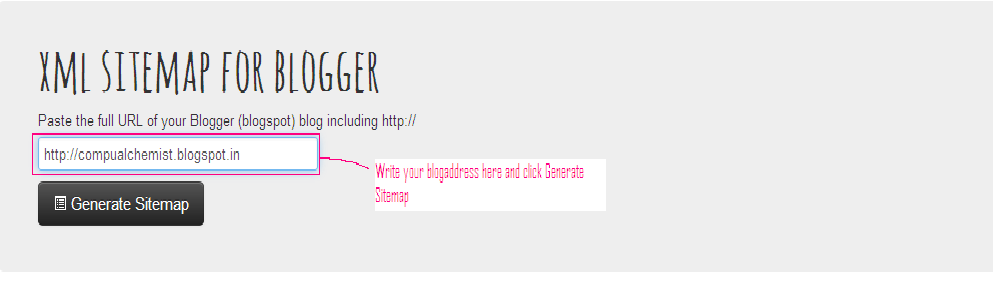
To generate a site map of your blog, click GOTO to open the site map generating site. The site will open and ask you to “Paste the full URL of your Blogger (blogspot) blog including http://”. Enter the complete address of your blog –
Now click the black coloured button ”Generate Sitemap”. Within seconds your blog’s sitemap will appear like one given below-

Wednesday, September 17, 2014
How To Change Blogger Post URL and Custom Permalink URL
Whenever we publish a new post, Blogger automatically generates the post URL according to the title of the blog post. For example, if the post title is How to Create Custom Post URL in Blogger? then Blogger will generate http://www..com/2013/07/how-to-create-custom-post-url-in-blogger.html as the post URL. If you want to change this URL to a small SEO friendly one here comes the solution.
Recently Blogger introduced an option named Permalink in Post settings to edit the post URL to your desired one. In this post I included the simple steps to use custom permalink in Blogger blog. Here are the steps.
Steps:
Note : If you have Permalink Option in your Blogger Post Settings Start fromStep 2.
1. Open a post you wish to edit the URL or Create a New Post.
(If you are editing a published post, then click on Revert to draft button to enable Permalink editing.)

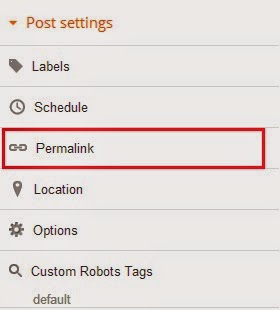
2. Then click Permalink in Post Settings.
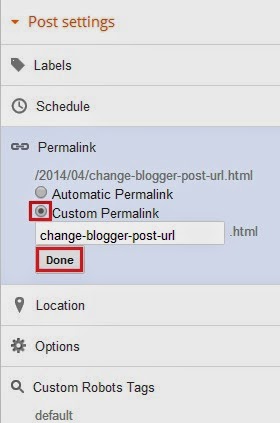
3. Now check the Custom URL radio button and type the new post URL in Custom URL text field. After changing the URL dont forget to click Done!
4.Finally, Click Publish .
Thats it...Now check the post URL it will be changed to the modified one !
Note : If you are changing URL of a old post, please note down the old URL before changing to a new one. Because your old post URL may be submitted to search engine or social websites. So If any one come to your blog using the old URL he will get a 404 not found error. Dont Worry ! you can Redirect your old URL to new URL using Custom Redirects feature of Blogger.
Tuesday, June 24, 2014
How to Create Custom Post URL in Blogger

When you publish a post in blogger, normally you dont need to create or set an URL. WordPress has the same feature. Post URL is automatically created from post title. But sometimes it maybe too large. And sometimes it may not be possible to show the full title in the URL. As a result it doesnt carry actual meaning. In that case you can customize your post URL.
Look at the Link below:
http://www..com/2012/10/download-paid-android-apps-for-free.html
This link is related to the post- Download Paid Android Apps For Free
The title of the post carry the full meaning. You might notice that- here the URL doesnt carry the proper meaning. It only shows- how to check cell phones quality using. A user may not understand what does the post include just by URL.
But you can customize the URL in such a way so that it expresses a meaning and have precision. And certainly it will be easier for your visitors to understand what the post is all about when they just see the post URL.
You might notice the structure of an URL. There are 3 parts in the blogger URL. Such as-
- Home Page URL : http://www..com/
- Date : 2012/10/
- Post URL : download-paid-android-apps-for-free.html
Hope now you realize how your post URL is created.
If you wanna create custom URL for your post you have to use the last part. You cant omit the home URL and date. Because omitting these two parts will affect the uniqueness of your URL.
By this time you should have a proper knowledge about blogger and post URL. Now lets see how to create Custom URL :
- Make sure youre signed in to your blogger account.
- Create New Post from anywhere that you do usually.
- Look at the right- Post Settings > Permalink.
- There are two options- Automatic and Custom. Look at the image below for help.
- Type your desired words in the custom box separated by a hyphen (-) or dot (.). Remember- space, ?, !, / these are not allowed here. And try to avoid underscore ( _ ). Because it will not separate your words.
- When you finish hit on the Done button. Thats it.

Thus you can optimize your blog posts permalink for more visitors. You can also look at this posts URL for example.
- My post title is- List of Best Free Proxy Sites
- My URL is- http://www..com/2013/06/list-of-best-free-proxy-sites.html
If I didnt set a custom URL then it will somewhat like that-
http://www..com/2013/06/list-of-best-free-proxy-sites-in-2013.html
Though it carries a full meaning, but look at the URL size- Too large. So creating custom URL will also let your reduce the size of the post URL.
Hope you enjoy this post!
Subscribe to:
Posts (Atom)