Showing posts with label files. Show all posts
Showing posts with label files. Show all posts
Thursday, September 4, 2014
Doro PDF Writer a very useful free software to convert files to PDF
Doro PDF Writer-a very useful free software to convert files to PDF
Doro PDF Writer is a very useful software for the people who frequently need to convert their files to PDF format. The software is easy to use and available free to download from the website “the sz development” You can convert any file or text in PDF format easily with the help of this software. This software does not create any desktop icon but adds an extra option in the print dialogue box. This software does not effect the colour of the text but keeps original colour during the process of conversion. If your document is in multiple colours and also contains some colour photographs or colour images, it will keep their original colours as they are. It also provides the option of password protection to secure your document. This software occupies only 8 MB of space on your hard drive. The conversion process is very simple –
2. Press Ctrl+p to open print menu.
3. Click Print in print options
4. Click to open the printer selection dropdown box. Here you will find option namely “Doro PDF Writer”, click it.
5. Click the “print” button at bottom.
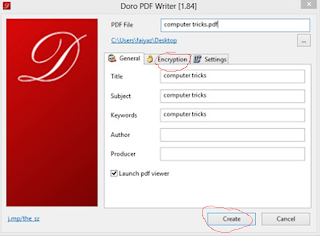
6. Now another screen will appear asking the “Title”, “subject” etc. of the new PDF document to be created. Fill these particulars and if you want to create a password protected document click “Encryption” and fill your password. In appropriate box.
7. Now click “Create” and your document will be converted to PDF format within few moments.
Download the software from here

Friday, August 8, 2014
Wirelessly Transfer Files between Android Phones and Computers

Download CLICK THE LINK
AirDroid
Usually, when a user wants to copy music files, videos, or images to an Android phone, he has to connect it to a computer using a cable. Repeating this task over time can be a bother.
One of the first questions my Android-using friends want to know is how to move files between their devices and their computers.
To make this task possible your computer and your Android phone must be on the same wifi network.
To make this task possible your computer and your Android phone must be on the same wifi network.
1.Open the Play Store from the app drawer. Search for and install the AirDroid (free) app to your phone.

2.Once you have installed the app, launch it. You should see a passcode, which has six characters, at the bottom of the page. Please take note of this code as we need it later to access the phone from the computer browser.

3.Launch your favorite browser, and open this address: web.airdroid.com. Then enter the passcode from the previous step to continue.

4.If successful, you will see the interface below. The right side of the page shows your phone model and a brief summary of the phone memory status. You can use this interface to do numerous tasks such as managing and sending messages or viewing the call logs, contacts book, pictures, videos, etc. To send a file from the computer to the phone, click the Files icon.

5.Click the Upload button at the top right of the new window to process.

6.Choose Select Folder or Files, and then select the folder/files that you want in the Explorer window.

7.Check the Progress status page to see whether or not the files were sent to the phone. When complete, the Progress column should read Success.

8.Close the browser’s window when you are done.
Subscribe to:
Posts (Atom)