Showing posts with label get. Show all posts
Showing posts with label get. Show all posts
Sunday, May 4, 2014
How to get site blog OwnershipVerified at Google Webmaster Tools
How to get site, blog Ownership Verified at Google Webmaster Tools
Though the verification of a site or blog does not have any effect on the page rank of the owner or search results display or any other performance of the site/blog but Google gives permission to view certain details about the sites and also allows the users to use many other tools. Such information can not be shown or revealed to unauthentic persons therefore Google needs to verify the authenticity of the owner. Those who created their blogs or sites using the blogger or Google site platforms are mostly verified automatically but others need to prove the ownership of their site. The ownership verification process is very easy.
Benefits of proving Site ownership at Google Webmaster
1. Only verified user are eligible to change over to a new URL.
2. Verified users can interact with other site owners.
3. Request Google webmaster, about your site indexing preference.
4. You can use webmaster tolls to view details of your site, improve your site’s quality or diagnose problems if any.
5. The Geographic locations targeted by you may be registered with Google.
6. A crawl rate change may be requested.
How to verify your site or blog ownership at Google webmaster
1. Meta Tag – In this method a meta tag is to be added to prove your access to the source files.
You must have some knowledge of HTML but it is not a difficult job because Google will send you an example for it if you request.
2. HIML file uploading – You will have to upload a file with the name you specify. You must have
some knowledge of HTML but you need be very expert HTML editor.
3. Google Analytic code – You must login as administrator to the Google analytic account verify
using the snippet.
4. DNS Record- To use this you must be authorized to sign in to your account with your Domain Name providers.
The simplest method to verify your site or blog Ownership at Google webmaster
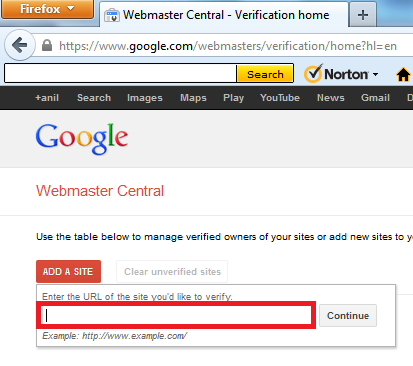
a. Login to Google webmaster tool.
b. Click on “Add Site”
c. Type your site or blog URL incloding http:// in the box appeared.
d. Click “continue” to go to the “site Verification” Page.
e. All the options of site verification will be listed, choose one.
About HTML Tag
You will receive a tag like one given below. You will have ti paste it in the <head> section of your
html file. The string in red will change every time -
<html>
<head>
<meta name="google-site-verification" content="vaDxDI5oIA2R4e_bOl5T39GJrop-AgEo6UyNLBssTa8" />
<title> My title </title>
</head>
<body>
page contents
</body>
It is easy, copy and paste the above code in your HTML file, save it and go back to the Google webmaster tool and click to verify. During your process of editing the HTML document, the Google webmaster tool site must be kept open.

Thursday, May 1, 2014
After Reportedly Canceled HTC One S Will Get Android 4 2 2 Updates

Previously, HTC has announced that the device will not get One S Android 4.2.2 update Jelly Bean. Taiwanese vendors provide a statement via their Facebook account. Not only that, the users of HTC One S had to be content with the HTC Sense version 4 which is currently used in Android 4.1.1, because HTC will not provide an update version of HTC Sense for the users of HTC One S.
But the good news comes today for the One S users are disappointed and had time to do a petition through change.org. According to the report in the HTC via Twitter account @ LlabTooFer, HTC will roll out Android 4.2.2 update for the users of One S, not only that, the update also brings Sense UI 5.0 comes installed on the device as HTCs flagship.
But unfortunately, this update will not be able to be enjoyed by all users One S. As we know, HTC released the One S in the 2 versions of the processor, the Snapdragon S3 as official circulating in Indonesia and the Snapdragon S4 circulating in the U.S. and Canada and only the user with the S4 processor variants will get the 4.2.2 update as promised.
Subscribe to:
Posts (Atom)